
Ergonomic 8x8 Corner Office: Layout, Posture & Cable Hacks
Last updated By Maya Bennett
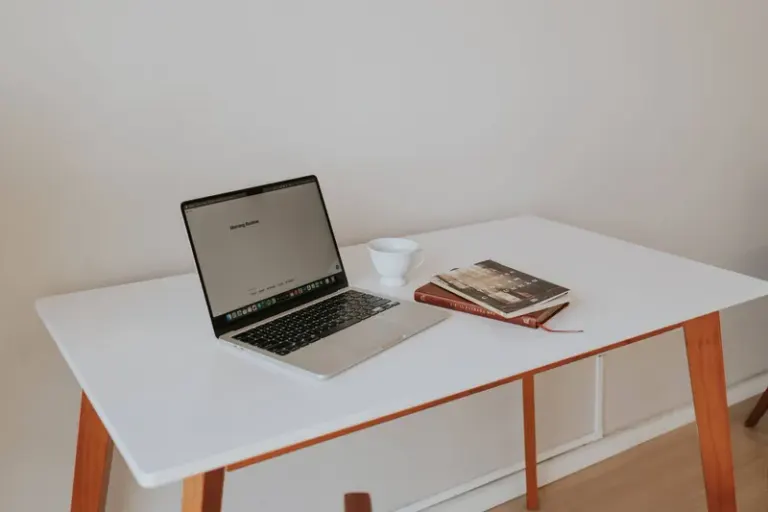
I'll be honest. My first attempt at squeezing a full-time workspace into an 8x8 corner looked like a bad science project: a chair that scraped the wall and a laptop perched on a stack of books. That clumsy start taught me to measure first, embrace small DIY fixes, and take the satisfaction of making every inch earn its keep.
Key takeaways
- Measure Once, Use Forever: Assessing Your 8x8 Corner
- Ergonomics That Fit: Furniture and Posture for Tiny Corners
- Layout and Workflow: Design Your Corner for How You Actually Work
- Hidden Highways: Cable Paths and Power Planning for an 8x8 Office
This post walks you through turning an 8x8 corner into a comfortable, productive micro-office. You’ll learn how to assess the space, pick and tweak ergonomic furniture, arrange a layout that actually supports your workflow, plan neat cable runs and power, and run a final setup checklist to catch the little things that annoy you later. Expect practical measurement tips, hands-on mods you can build or buy, and honest trade-offs for tiny living. Stick with me and you’ll leave with a clear plan to make that awkward corner your favorite spot at home.
Measure Once, Use Forever: Assessing Your 8x8 Corner
Confession: I used to buy furniture that looked perfect online and then watch it choke my corner until drawers wouldn't open. Measuring is the boring step that prevents that misery. It sets the rules for everything else.
Start by mapping the corner like a mini site survey. Measure wall lengths, ceiling height, distance to windows and doors, outlet locations, and vents. Note where natural light lands during your workday and where shadows form. Watch foot traffic and how doors or drawers swing. These details decide what furniture profiles will fit and where you can safely run cords.
Think vertically as much as horizontally. An 8x8 floor footprint is tight, but the walls are free space. Mark places for shelves, pegboards, or a fold-down desk. Find studs and masonry so you can mount things securely. This is also where you decide priorities: do you need lots of storage, a multi-monitor setup, or a compact sit-stand station?
This assessment becomes your reference for layout, furniture, and cable planning. Later I’ll share simple measuring templates, quick cardboard mockups to test clearances, and a basic priority matrix to balance comfort, storage, and workflow.
Treat this like a mini site survey for one corner of your home. Spend the time now and you’ll avoid bad orders, wasted cuts, and extra trips to the hardware store.
Measure and map
Start with pencil and paper, then confirm with tape. Measure wall lengths, ceiling height, distance to the nearest door and window, and the width of any doorway you must move furniture through. Mark switches, vents, radiators, and baseboard heaters. Focus on the usable footprint. Use painter’s tape to outline a desk and chair on the floor so you can walk around the setup before you commit.
Check three clearances. First, seat-to-wall clearance for recline or swivel (aim for 24 to 36 inches behind the chair). Second, knee clearance under the desk (roughly 20 to 28 inches high and 18 to 24 inches deep depending on your chair). Third, monitor distance and sightline: sit where you’ll work, extend your arm, and note the distance to where the screen will sit (about arm’s length).
Power, light, and connectivity
Count outlets and sketch where power strips will sit. Note which outlets share a circuit if you’ll run power-hungry devices. Track natural light through the day and mark glare spots. Test Wi-Fi strength and spot any dead zones with your phone. Plan cable paths from each device to outlets and the router and avoid running cords across walkways.
Structural checks and mounting points
Locate studs and electrical boxes before you plan wall-mounted shelves, monitor arms, or a fold-down desk. Drywall anchors matter when every pound counts. Measure ceiling height for tall monitor arms or shelves and check the floor if you plan heavy storage. If you rent, write down any drilling restrictions and whether you’ll need to patch later.
Traffic, noise, and zoning
Watch how people move past the corner during a day. If it’s a high-traffic route, consider a low-profile barrier like a slim bookcase or a curtain on a tension rod to add privacy and cut distraction. Listen for noisy appliances or HVAC cycles and plan softening elements such as a rug, fabric panel, or a compact bookshelf as an acoustic buffer.
Quick mockups and tools
Make cardboard templates for your desk and monitor. Tape them down, sit in the chair, and go through your usual motions. Bring a small toolkit: tape measure, level, stud finder, pencil, and a phone to photograph sightlines. I once used an old pizza box as a monitor shelf mockup; it held long enough to prove the idea.
When you finish this assessment you’ll have a checklist for furniture sizes, power needs, mounting plans, and acoustic fixes. Measure twice, plan once, and then enjoy the satisfying part: making the corner yours.
Ergonomics That Fit: Furniture and Posture for Tiny Corners
Confession time: I used a camping chair for months and blamed long meetings for my stiff neck. In a tiny corner, ergonomics matters. You don’t get extra space to hide bad posture, and small compromises quickly become daily pain. Getting seating, monitor height, and keyboard reach right is worth the effort.
Pick adjustable pieces that respect your footprint. A compact chair with good lumbar support and a small footprint beats a bulky throne that blocks circulation. Consider a wall-mounted or fold-down desk, a sit-stand converter that clamps to a slim top, and monitor arms that free up surface area. A laptop riser plus a compact external keyboard and mouse is a fast, cost-effective route to proper eye and arm angles.
Posture basics don’t change. Top of the screen at eye level, elbows near a 90 degree angle, feet supported. If your corner forces your feet off the floor, a DIY footrest from a small box or a stackable shelf will stop you from slouching. Little fixes like a lumbar roll or a narrow seat cushion make long stretches far more comfortable.
Later I’ll share specific chair picks for compact spaces, build plans for a fold-down desk, and step-by-step tweaks to tune posture without replacing everything. The goal is practical comfort you can reach with modest purchases or simple DIY.
Ergonomic furniture for tight corners
In an 8x8 corner, buy pieces that earn their keep. Prioritize adjustability over bells and whistles. Aim for a chair with height adjustment, solid lumbar support, and a modest footprint. A narrow seat or armless model tucks under the desk and frees floor space. For desks, choose a shallow-depth top, about 20 to 24 inches, so monitors sit at a comfortable distance without eating the room.
Place the monitor so the top of the screen aligns with your eye level when seated upright. Keep the screen about an arm’s length away, roughly 20 to 30 inches. If you use a laptop, elevate it on a riser and use an external keyboard and mouse to avoid hunching.
DIY hacks that boost comfort and save space
- Simple lumbar. Cut a pool noodle to size, slip it into a fabric sleeve or old pillowcase, and strap it to your chair with Velcro or a belt. Adjustable lumbar support that costs next to nothing.
- Custom footrest. Use a sturdy wooden wedge, a stack of non-slip books, or a shallow crate topped with foam. Goal: feet flat, knees near hip level. Adjust until your thighs slope slightly down.
- Keyboard tray without cutting. Add a clamp-on sliding tray or make a shallow sliding shelf from a flat board and under-desk drawer slides. Tucks the keyboard away and pulls it to the right height.
- Slim sit-stand. For occasional standing, use a compact riser that stacks on your desk or a fold-down shelf mounted to the wall. It disappears when you’re done, so use it in short bursts.
- Seat depth hack. If your chair feels too deep, add a removable lumbar pad or roll a towel behind your lower back. It shortens the effective depth and keeps you centered.
Posture habits that actually stick
- Quick posture check. Feet flat, knees about 90 degrees, hips slightly higher than knees. Elbows close to your sides and bent near 90 degrees. Neck long, ears over shoulders.
- Micro-breaks and eye relief. Every 30 to 45 minutes stand or stretch for 30 to 60 seconds. Every 20 minutes look at something about 20 feet away for 20 seconds to relax your eyes.
- Light recline for back health. A slight recline, 100 to 110 degrees, takes pressure off discs while keeping you engaged. Lock the tilt so you don’t slouch.
- Keep movement in your workflow. Build small tasks that make you stand and walk for 1 or 2 minutes between focused sessions. Movement beats perfect posture when fatigue sets in.
These hands-on tweaks let you tailor ergonomics to a micro-office. Change one thing, live with it for a week, then tweak again. You’ll be surprised how comfortable a corner can become.
Layout and Workflow: Design Your Corner for How You Actually Work
True story: I once set up a corner to look tidy, then figured out I had to walk across the room three times during every video call. Layout controls your daily flow. In an 8x8 corner, a smart layout reduces unnecessary movement, keeps essentials within reach, and creates a mental separation between work and living.
Start by defining zones: the primary work surface for your screen and input devices, a reference zone for papers and frequently used tools, and a storage zone for less-used items. In tight spaces these zones overlap. The trick is to put high-use items within arm’s reach and stash everything else vertically or behind doors. An L-shaped or compact corner desk gives you a natural split between active and passive areas without swallowing floor space.
Think about lighting, acoustics, and camera angle if you take video calls. Position task lighting to avoid glare and use soft-reflective surfaces to cut harsh echoes. Plan where you’ll stand for short tasks and whether cabinets or windows can open without obstruction. Multi-use furniture like a storage ottoman or narrow filing cabinet can double as seating or a printer stand.
Below I’ll share layout templates, cardboard mockups, and rules of thumb for common setups like dual monitors, laptop-plus-monitor, and hybrid work/leisure arrangements.
Design the workflow zones
List the tasks you do in the corner: deep work, video calls, sketching, printing, packing orders. Sort them by frequency. Daily stuff is your hot zone. Less-used items go into the warm zone. Archive and bulky gear live in the cold zone.
Place the hot zone within arm’s reach: notebook, mouse, headphones, a small charging puck. Warm items sit on a nearby shelf or top cubby. Cold items tuck low or behind doors. This zoning keeps your desktop clear and reduces the friction of switching tasks.
Arrange for flow and flexibility
In an 8x8 corner every inch must work for you. Stagger heights so tools don’t compete. Put a clamp lamp or swing-arm task light on one side so it lights both seated and standing positions. Use a shallow shelf above eye level for reference books and a tall, narrow cabinet beside the desk for binders and a printer. If you need occasional horizontal space, add a slide-out shelf or a small folding tray mounted under the desk. It gives you extra surface when packing or sketching and disappears when not needed.
Think about transitions. If you alternate between calls and focused work, create a visual cue to switch modes. A small curtain, a folding backdrop board, or a tray for call materials that you can close up fast works well. For mobile gear like tablets or a drawing pad, stow them on a pegboard hook or in a shallow wall pocket so they’re ready but out of the way.
Practical layout examples
- Solo laptop worker. Hot zone: laptop riser and external keyboard. Warm zone: headphones on a hook and a small file tray. Cold zone: printer tucked on a low shelf with a cable routed under the desk.
- Hybrid meetings. Hot zone: camera and mic on a small shelf at eye level. Warm zone: notepad and quick-access charger under the monitor. Cold zone: paper inbox and router on a low rolling cart.
- Creative setup. Hot zone: tablet on a swing-out arm. Warm zone: supply bins on a pegboard. Cold zone: portfolio and large-format storage in a vertical slot.
Quick layout checklist
- Can you reach hot-zone items without leaning?
- Is there a clear path for quick standing or stepping back?
- Are frequently moved items on casters or easy-grab hooks?
- Are charge points centralized to minimize cross-room cable spaghetti?
Tweak, live in it for a week, then tweak again. Iteration is the secret to a layout that feels effortless in a small footprint.
Hidden Highways: Cable Paths and Power Planning for an 8x8 Office
Full confession: I once turned an 8x8 corner into a tripping hazard with too many power strips. Cable and power planning isn’t glamorous, but it’s essential. A tidy power plan improves safety, cuts visual clutter, and gives you flexibility for future gear without redoing the room.
Begin by listing your devices and their power and connectivity needs. Note outlet locations, router position, and any wall-mounted devices. Decide whether you need a surge protector, a small UPS for backup, or a network switch for wired devices. In small corners, where one outlet sits can change your whole layout, so plan ahead and avoid late-stage compromises.
Routing options include under-desk trays, adhesive cable channels along baseboards, wall raceways for a cleaner look, and cable clips to keep runs taut and out of sight. Keep power bricks elevated and avoid running cables across walkways. Label both ends of longer runs so future changes are painless. Think about serviceability: a tidy bundle you can open in minutes is better than a glued-in channel that makes upgrades hard.
Below I’ll walk through routing schemes, recommend hardware for small spaces, list safety checks, and show a simple diagram method to plan power and data paths before you buy anything.
Plan the power strategy first
Group devices by priority. Keep always-on items (router, desktop, monitor) together on a small dedicated surge-protected strip or a UPS if you need clean shutdowns. Put chargers and low-priority devices on a separate strip you can switch off overnight. Sketch a simple power map if that helps. It forces decisions that stop cords from multiplying into chaos.
Do a quick load check. Add up the wattage stickers on chargers and power bricks for a rough total. If your combined devices approach a typical circuit limit, stagger heavy equipment or move an appliance to another room. This prevents tripped breakers and hot cords.
Create clear cable paths
Think in lines and corners. Route power along the least visible edges: behind baseboards, under the back of the desk, or up a single vertical stud rather than across the floor. Use thin flat Ethernet or power-safe extension cable along baseboards; paint or tuck them into quarter-round molding for a seamless look. For renters, adhesive raceways and removable clips peel off cleanly later.
Contain the mess under the desk. Mount a shallow metal basket or repurpose a metal shelf to hold power strips and bricks off the floor. Bundle excess cable into coils, secure with Velcro straps, and tuck them into the basket. If you want a tidy desktop, install a grommet and run a fabric sleeve down the monitor arm.
DIY fixes that look better than store-bought
Turn a length of PVC conduit into a painted cable spine. It hides multiple cords, costs a few dollars, and screws to a stud. Use a narrow pegboard strip by the desk to hang chargers, headphones, and your phone so cords drop to one tidy point. I once repurposed a slim picture frame as a discreet channel for a lamp cord; weird little hacks like that save hours of visual clutter.
Label both ends of every cable with small tags or colored tape. When you need to unplug mid-call, you’ll be glad you did.
Quick checklist: centralize power, separate high- and low-priority loads, route along edges, and secure excess under the desk.
Final Setup Checklist: One-Page Runbook to Launch Your Micro-Office
After days of building and tweaking, I still do a test run to catch the things that annoy me. A final checklist turns intention into a working, comfortable space. It covers ergonomics, cable safety, lighting, and workflow so you can work without constant adjustments.
A good checklist is compact. Confirm clearances, do a posture check for monitor and keyboard heights, audit cables and outlets for safety and labels, and test lighting and acoustics. Then sit down and work. An hour of real work reveals issues a visual inspection misses.
Include a short maintenance plan in your runbook. Note routine tasks like dusting fan vents, re-tightening monitor arm bolts, and updating cable labels after adding equipment. Save photos and measurements so you can replicate the setup if you move. This small documentation will save hours later.
Below are a few practical passes to run before you call the job done.
Quick wins before you sit down
With desk, chair, and cables in place, spend 15 to 30 minutes on small high-return tasks. Add felt pads or rubber feet to anything that might scratch the floor. Stick adhesive bumpers where drawers or doors hit the desk to stop clatter. Install a grommet or neat hole for bundled cables so the surface looks intentional. These tiny moves change the feel of the room more than another lamp.
Safety and durability checklist
Check every mounting point and fastener. Tighten screws on wall brackets and re-test shelf anchors with a firm pull, but don’t drop heavy items during the pull test. Confirm the power strip is upright and vents are clear. Run devices for 20 minutes and feel plugs and adapters for heat. If anything runs hot, move it or add ventilation. Label both ends of longer cables. Finally, test that any rolling furniture has a working brake or rubber stop so you don’t roll into your desk during a call.
- Verify shelf anchors and monitor mounts are secure.
- Confirm surge protector or UPS is accessible and off the floor.
- Ensure no cords run across walkways or under rugs.
Comfort and workflow tune-up
Do a 20-minute real-work test. Notice where you reach and if you twist to see the screen. Adjust monitor height by a thumb’s width if your neck tenses. If your chair needs one more millimeter forward, add a thin lumbar pad or tuck a folded towel behind your lower back. Move your most-used object into the hot zone until it is effortless to grab. If you stand awkwardly, add a slim folding shelf or a pegboard hook for your phone and notepad.
Light, sound, and camera framing
Turn on task and ambient lights and look at the screen from both seated and standing positions. Move any light source that creates glare. Sit where you will for a video call and check the background-remove clutter, add a small plant or fabric panel to soften echoes. Record a 30-second test call to check microphone position and camera framing.
Final test loop and maintenance plan
Set three reminders: a one-week tweak, a one-month safety check, and a six-month deep clean. The one-week tweak is where most improvements happen. I once moved my printer six inches after a week and gained a whole shelf’s worth of breathing room. Keep a small bin of spare screws, anchors, and Velcro straps nearby. Tape a one-page sketch of future upgrades inside a desk drawer so your next change starts from a clear plan.
These final checks turn a workable corner into a place you enjoy using every day. Sit, breathe, and know the corner is ready.
Moving Forward
You now have the tools to turn an awkward 8x8 corner into a productive micro-office. Start with the basics: measure carefully (wall lengths, ceiling height, outlets, and the 24 to 36 inch seat-to-wall clearance) and think vertically as well as horizontally. Pick furniture that earns its keep: a shallow 20 to 24 inch desk top, a narrow adjustable chair, or a clamp-on sit-stand riser. Zone the corner into hot, warm, and cold areas so frequently used items stay within arm’s reach, and plan lighting, acoustics, and camera framing as part of the layout, not an afterthought.
Be honest about trade-offs and prioritize what will actually improve your day. Small DIY hacks often beat a single expensive purchase. Try a pool noodle or rolled towel for lumbar support, build a wooden wedge or crate footrest, mock monitor shelves with cardboard or a pizza box, or run a painted PVC conduit as a tidy cable spine. For power, map devices to a dedicated surge strip or small UPS for always-on gear, avoid daisy-chaining, and never run cords under rugs. Safety and serviceability matter as much as neatness, so label both ends of cables and keep power bricks off the floor in an under-desk basket.
If you want momentum, follow this short sequence: measure and tape out the desk and chair footprint today, mock critical elements with cardboard, pick one ergonomic fix (monitor height or lumbar) to implement this weekend, then plan cable paths and secure mounts. Sit for a 20 to 60 minute work session and use the final setup checklist to catch noisy drawers, glare, or awkward reaches. Schedule a one-week tweak, a one-month safety check, and a six-month deep clean so your corner evolves with your needs instead of becoming a static compromise.
Take action now. Pick one small, high-impact change from this post and do it this week. Post a photo, a question, or a before-and-after in the comments or on social media so we can celebrate the win and troubleshoot together. Tiny corners respond to measured choices, simple DIY, and a willingness to iterate. Make your corner earn its keep, and enjoy the satisfaction of a compact space that works as hard as you do.
Related product reviews
Magnetic Power Strips and Compact Alternatives for Tight Spaces
Compare a true magnetic power strip with flat-plug and direct-wall alternatives for tight apartments, dorms, campers, and RV interiors.
Read more
Best Fold-Away Closet Desks to Maximize Your Home
Discover bi-fold and fold-away closet desks that reclaim floor space, hide a home office in your home, with smart storage, cable management and easy setup.
Read more
Best Under-Desk Heated Footrests for Small Space Offices
Stay warm and ergonomic in tight workspaces. Compare the best under-desk heated footrests for small-space offices, including slim, foldable options.
Read more